

Add high-quality exterior, interior, and logo photos to your Business Profile now, using practical advice from brand photography guidance to select the most effective images. These are the highest-impact photos a local business can post, and once your profile is verified, they typically go live within 24 to 48 hours. Start by uploading through Google Search or Google Maps today.
- Most business photos go live within 24 to 48 hours after upload, provided they meet Google's technical and policy standards.
- Google recommends posting photos across exterior, interior, product, logo, and team categories for a comprehensive and recognizable profile.
- Uploads should be JPG or PNG files under 5 MB, with a resolution of at least 250x250 pixels, and avoid heavy filters or staged scenes.
- Consistent, factual captions and monthly photo updates boost profile engagement and visibility without needing professional equipment.
- Managing profile photos is easier with NSYGHT’s service, which handles uploads, quality checks, captions, and recurring schedules for multiple locations.
Google photo and video specifications you need to know
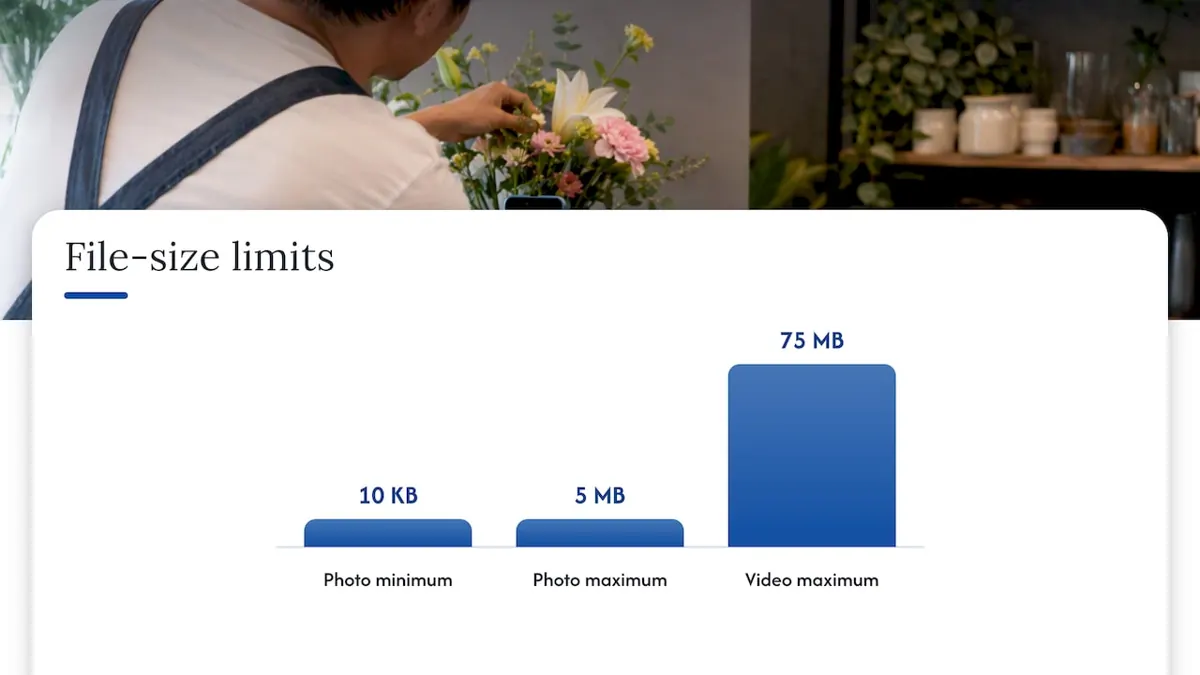
Google will reject photos that miss basic technical requirements, so check these before you upload anything. Photos should be JPG or PNG files, sized between 10 KB and 5 MB, with a recommended resolution of 720x720 pixels and a minimum of 250x250 pixels. Videos can run up to 30 seconds, max out at 75 MB, and should be shot at 720p or higher.
Beyond the technical minimums, Google expects photos that are in focus, well-lit, and an honest representation of your business. Heavy filters, staged scenes, or AI-altered images are discouraged because they may misrepresent what customers will actually see.
Quick export checklist before you upload:
- Confirm the file is JPG or PNG and under 5 MB.
- Shoot or crop to a square-ish ratio near 720x720 pixels.
- Rename the file something descriptive, not "IMG_4471."
- Check lighting and focus on a phone screen before exporting.
One figure to remember: Google's own guidance sets the minimum acceptable resolution at 250x250 pixels, meaning anything smaller risks looking pixelated or getting flagged during review.
Which photo categories matter most for your profile
Google recommends category-specific photos because they answer the exact questions customers have before they call or walk in. Spread your uploads across these groups rather than dumping twenty similar shots into one category.
- Exterior: multiple shots showing your storefront, signage, and parking so customers recognize the building from the street.
- Interior: several photos from a customer's eye level that capture layout, lighting, and general ambiance.
- Product or at-work: multiple images showing your actual offerings or staff performing the work customers are paying for.
- Logo and cover: a clean, high-quality logo and one strong cover photo that represents your brand at a glance.
- Team and common areas: some photos of staff and shared spaces like waiting rooms or dining areas, when relevant.
Google's category guidance notes that businesses adding multiple photos per category give customers more to work with when deciding where to spend their money.
How to add photos on desktop, mobile, and in bulk
Each upload path takes a different number of taps, so pick the one that matches where you are.
- Desktop via Search: Search your business name, click your Business Profile card, select Photos, then Add photos.
- Google Maps (owner): Open Maps, tap your business listing, select Add photo, choose a category, and upload.
- Android or iOS app: Open Maps, go to your business entry, tap More, then Add photo.
- Google Pay for Business: Merchants can add photos directly from the Google Pay for Business app, and the app sends a notification once a photo is approved or rejected.
- Bulk uploads for multiple locations: Businesses with ten or more locations can use a spreadsheet-based bulk upload process through Google's business location group tools.
Upload from a desktop when you have more than five photos at once. The drag-and-drop interface is faster than tapping through a phone one image at a time.
Simple edits and habits that improve photo performance
Small, consistent effort beats a one-time photo dump. Start with filenames and captions: "front-entrance-signage.jpg" tells Google and customers more than a generic camera export, and a short factual caption like "Our main dining room, seats 40" helps both readability and accessibility. Avoid stuffing captions with keywords, since Google's guidance favors genuine, useful descriptions over promotional language.
- Use descriptive filenames instead of default camera names.
- Write one-sentence captions that state facts, not slogans.
- Add new photos monthly, and swap your cover photo if your branding or storefront changes.
- Crop, straighten, and adjust exposure, but skip heavy filters or edits that change how the space actually looks.
Set a recurring monthly reminder to add two or three new photos. Profiles that look recently updated tend to hold customer attention longer than ones with the same five photos from three years ago.
Managing uploads, rejections, and policy compliance
Every photo moves through a review cycle before it appears publicly. Statuses include Pending, Not approved, and Live, and Google states most photos process within 24 to 48 hours of upload.
- If a photo never appears, check for duplicates, a policy violation, or an unresolved verification issue on your profile.
- Owners can delete their own photos directly from the Photos tab in their Business Profile dashboard.
- To report an inappropriate or incorrect customer-submitted photo, use the flag or report option attached to that image.
- Keep a simple log of filename, upload date, and uploader to avoid re-uploading duplicates and to speed up troubleshooting.
All uploads, owner or customer, must comply with Google's photos and videos policy, which prohibits misleading, offensive, or irrelevant content, and businesses remain responsible for what they post.
Putting photos to work in Posts
Business Profile posts accept photos or video and come in three flavors: Updates, Offers, and Events, each shown in the Overview and Updates tabs on Search and Maps.
- Use Updates for timely news paired with a relevant, recent photo.
- Use Offers with a product or service photo plus a clear discount or deadline.
- Use Events with a photo that captures the atmosphere customers can expect.
- Add a call-to-action button that links straight to a booking or ordering page, not your homepage.
A steady cadence of photo-led posts signals an active profile, which tends to hold more attention from local searchers than one that hasn't posted in months.
Where small businesses waste photo opportunities
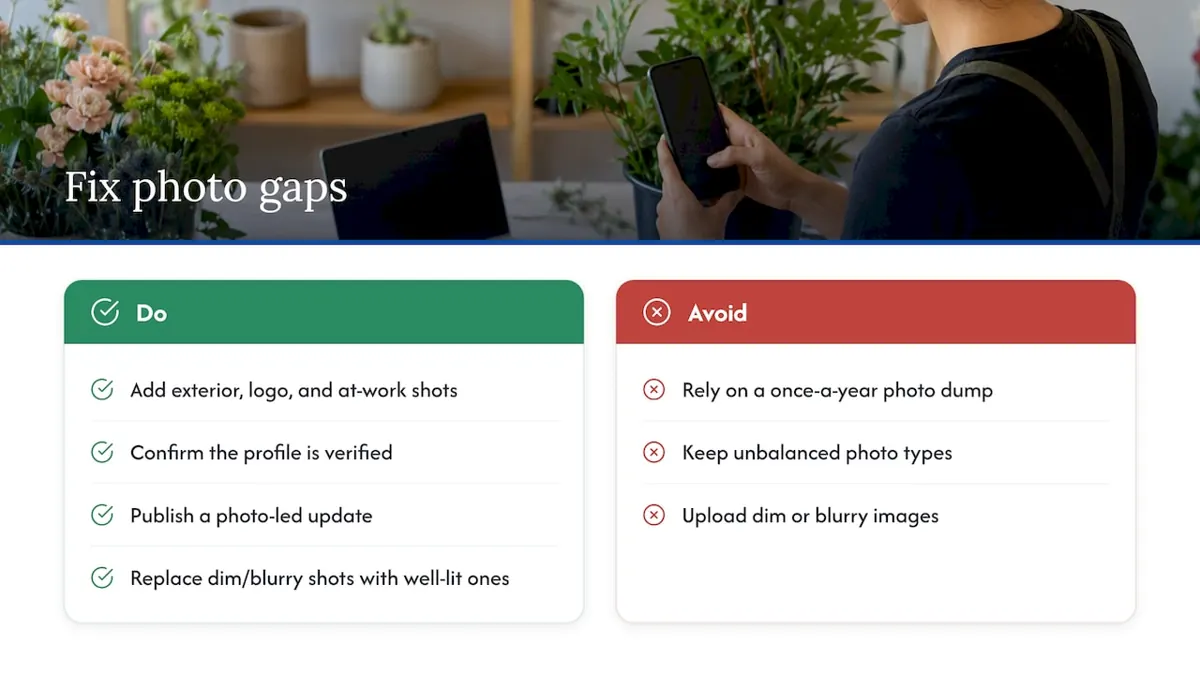
The biggest gap we see on client profiles isn't missing photos, it's unbalanced ones. A business with fifteen interior shots and zero exterior photos is invisible to someone trying to recognize the storefront from the sidewalk. The fix is almost always the same three moves: add exterior, logo, and at-work photos, confirm the profile is verified, and publish one photo-led update to reset the "recently active" signal Google and customers both notice.
Common fixes recommended for business profiles include replacing dim or blurry uploads with properly lit replacements, adding short factual captions where none existed, and setting a monthly upload schedule instead of a once-a-year photo dump. None of this requires professional equipment, just consistency and attention to the categories Google actually recommends.
**
Let NSYGHT handle your photo management for you
Keeping a Business Profile stocked with fresh, properly categorized, policy-compliant photos takes real time, and most small business owners are already stretched across the parts of the business that pay the bills. NSYGHT's Google Business Profile management service covers upload cadence, quality control on every image, factual captions, and monthly reporting so you can see exactly what changed and why.

Onboarding for these services often includes auditing your current photo mix, filling gaps in exterior, interior, and at-work coverage, and managing a recurring upload schedule. If you manage several locations or just want your profile looking active without doing the work yourself, get in touch through our SEO services page to see what a managed profile looks like for your business.
Frequently Asked Questions
Search your business name on Google, open your Business Profile card, select the Photos tab, and click Add photos to upload directly from your computer or phone. On mobile, open Google Maps, tap your listing, and choose Add photo under the More menu.
Google Photos is a personal storage app, not a Business Profile management tool, so images saved there don't automatically appear on your listing. You still need to upload each photo manually to your Business Profile through Search, Maps, or the Google Pay for Business app.
Most photos go live within 24 to 48 hours after upload, assuming your profile is verified and the image meets Google's quality and policy standards. Delays usually point to a duplicate file, a policy issue, or an unresolved verification step.
Yes, owners can delete any photo they uploaded directly from the Photos tab in their Business Profile dashboard. For photos submitted by customers that violate Google's photos and videos policy, use the report or flag option attached to that specific image instead.
Owner-uploaded photos are curated by the business and typically appear first or in dedicated category sections like exterior, interior, and at-work. Customer-submitted photos appear in a separate section and can include any legal content the customer chooses, which is why monitoring and reporting inappropriate uploads matters.
Key Google resources for photo specs and policy
For the exact specifications, upload steps, and policy language referenced throughout this guide, Google's own help documentation stays the most current source. Bookmark the photo and video management page and the photos and videos policy for quick reference whenever you're troubleshooting an upload.