

You can update your Google Business Profile hours directly from Search or the Maps app, and both edits sync to the same listing. Use regular hours for your normal weekly schedule, special hours for holidays or short-term changes, more hours for services like takeout or delivery, and "Temporarily closed" only if you're shutting down for 7 or more days.
- Most businesses should regularly update their hours to reflect special, seasonal, or service-specific changes, rather than setting them once and forgetting.
- Desktop editing is preferable for bulk or multi-day modifications, while Google Maps offers faster, on-the-spot updates for single or quick fixes.
- Splitting hours for lunch and dinner breaks, overnight service, or 24-hour operations requires specific entries, with overnight hours needing separate segments across midnight.
- Marking holiday or temporary closures with special hours prevents customer confusion and reduces no-shows, especially if scheduled well in advance.
- Managing hours effectively at scale benefits from assigning a dedicated owner, batch uploads, calendar reminders, and outsourcing to SEO agencies for multiple locations.
How to Edit Google Business Hours From Search on Desktop
The desktop route works best when you're setting up your schedule for the first time or making several changes at once, since the bigger screen makes checkboxes and dropdowns easier to manage than on a phone.
- Sign in to the Google Account linked to your Business Profile, then open your profile from Google Business Profile or by searching your business name.
- Click Edit profile, then select Hours.
- Check the box for each day you're open, and use the dropdown menus to set your opening and closing times for that day.
- To create a break in the middle of the day, add a second time entry for the same day.
- Click Save, then search your business name in a new tab to confirm the hours look right.
Google's own instructions confirm this is the standard path for editing business hours, including how to add multiple entries per day. Don't panic if the update doesn't show up instantly. Caching and verification checks can hold a change back for a bit before it goes live.
Can You Update Business Hours From Google Maps?
Yes, and it's often faster than digging through desktop menus, especially when you're standing in your own store and need to fix something on the spot.
- Open Google Maps and tap your business photo or name to load your Business Profile.
- Tap Edit profile, then tap Hours.
- Adjust the times for the day or days that need changing, and tap the checkmark or Save button to confirm.
- Search your business name in Google Search a few minutes later to verify the change carried over.
Mobile editing shines for quick, one-off fixes, like closing two hours early because of a staffing gap. For anything involving multiple days, split shifts, or bulk changes across locations, desktop is still the more reliable tool since you can see more fields at once and make fewer thumb-typing mistakes.
How Do You Set Business Hour Breaks or Split Shifts?
Plenty of businesses don't run one continuous block of hours; restaurants close between lunch and dinner, and some clinics shut down for an hour at midday. Google's hours editor handles this by letting you add a second time entry for the same day instead of forcing one unbroken range.
- Restaurant example: 11:00 AM to 2:30 PM, then a second entry from 5:00 PM to 10:00 PM.
- Salon example: 9:00 AM to 1:00 PM, then 2:00 PM to 6:00 PM to cover a lunch break.
- Clinic example: 8:00 AM to 12:00 PM, then 1:30 PM to 5:00 PM for afternoon appointments.
Google displays both blocks on your profile exactly as entered, so customers see the real gap instead of assuming you're open straight through. For appointment-based businesses, this detail alone can cut down on no-shows and confused phone calls asking why nobody answered at 1:15.
How Do You Set 24-Hour or Overnight Hours?
If your business genuinely never closes, like a gas station or a 24-hour gym, select the Open 24 hours toggle for that day in the Hours editor instead of entering a start and end time.
Overnight operations that close and reopen across midnight are trickier. Google requires split entries in that case: one segment ending at 11:59 PM for the first day, and a second segment starting at 12:00 AM the next day. Skipping this step is a common reason bars and late-night diners show incorrect hours online.
How Do You Add Special Hours for Holidays?
Special hours exist for temporary, date-specific changes, not your everyday schedule. Google's guidance is explicit here: special hours should cover closures or altered hours for up to 6 consecutive days. Anything longer belongs under "Temporarily closed" instead.
- From Edit profile, go to Special hours and click Add a date.
- Pick the specific date (Thanksgiving, a store renovation day, a one-off early closure) and enter the adjusted hours or mark it closed.
- Save the change, then double check it on your live listing closer to the date.
- Remove or edit the entry after the event passes if it's still showing.
Multi-location businesses can skip the manual clicking entirely by using Google's spreadsheet bulk upload format, which accepts date and time-range columns for dozens of locations at once. If a location is shutting down for a week or more, or indefinitely, mark it "Temporarily closed" rather than stacking special-hours entries. Confirming holiday hours ahead of time matters even when they match your normal schedule, since an explicit entry heads off confused calls on the day itself.
What Are 'More Hours' and When Should You Use Them?
More hours cover service-specific windows, like takeout, delivery, drive-through, or senior shopping hours, that don't match your main storefront hours. There's one hard rule: more hours only display if your regular main hours are already set, and each type has to be added as a separate entry.
- Takeout hours: narrower than your dine-in hours if the kitchen closes the takeout window early.
- Drive-through hours: often wider than in-store hours for fast food and pharmacies.
- Senior hours: a short early-morning window, common at grocery stores.
Customers see these as a distinct line on your profile, right under your main hours, which cuts down on the "are you actually open for pickup right now" question. Since more hours should be a subset of your main hours, adding a quick description in a Google post helps clear up any confusion about who the service window applies to.
Why Accurate Hours Matter More Than Owners Think
Wrong hours don't just annoy customers. They quietly erode local visibility, since Google factors listing consistency into how it ranks you against nearby competitors for local search. A customer who drives to a "closed" business that was actually open, or shows up to a locked door during posted hours, rarely gives you the benefit of the doubt twice.
The fix is mostly about routine, not tools. Assign one person as the owner of your hours listing so edits don't collide or get forgotten. Put recurring holidays on a shared calendar with a two-week reminder to update special hours before the date arrives. When hours change temporarily, post about it directly on your profile so it shows up alongside the listing itself, not just buried in the hours tab.
Set a recurring calendar reminder for the first week of November and December each year, specifically to review upcoming holiday hours across every location you manage.
Why Are My Google Business Hours Wrong or Not Updating?
Three things usually explain a hours mismatch. First, caching: Google doesn't always refresh a listing the instant you save a change. Second, verification holds: some edits trigger a review before they go public. Third, and most often overlooked, duplicate or conflicting listings for the same address.
- Search your business name and check if a second, unmanaged listing exists with old hours.
- Look for a "suggested edit" banner on your profile. Community-submitted edits can override your listing until you dismiss or confirm them.
- If neither explains it, Google's own troubleshooting guidance walks through account level fixes.
- For businesses managing several locations, Google offers bulk account support through the Business Profile help center rather than fixing each listing one at a time.
A quick audit small teams can run in under 10 minutes
Here's a quick self-check to perform before touching anything else: Who's actually updating hours right now, and do they have login access to the profile? Is the listing verified, or is it sitting in a pending state that could be delaying your edits? Search your own business name and check for duplicate listings competing for the same address. Pull up your holiday calendar for the next 90 days and confirm special hours are queued.
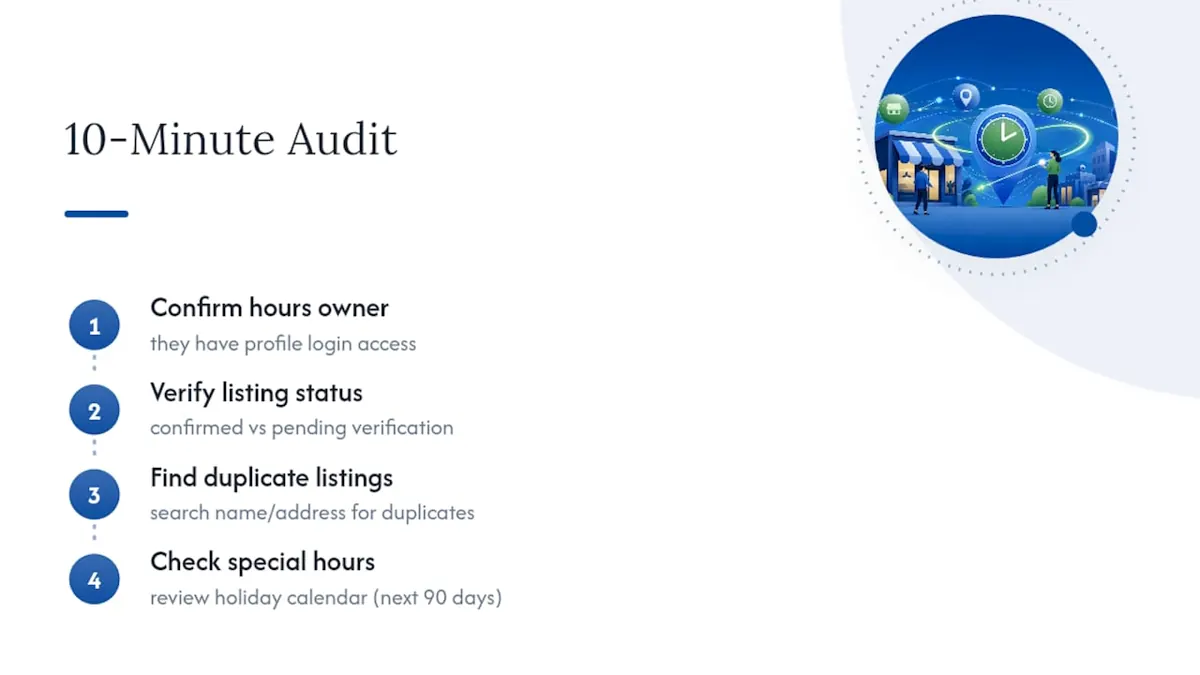
For anyone managing more than a handful of locations, batch spreadsheet uploads beat manual entry every time, paired with a single named owner and a calendar automation that flags holidays before they sneak up on you. Our local SEO checklist covers the rest of the listing accuracy work that pairs with this.
What Business Owners Get Wrong About Google Hours
Most advice on this topic treats hours as a one-time setup task, and that's the mistake. Owners fill out the Hours tab when they first claim their profile, then don't touch it again until a customer complains about showing up to a locked door on a holiday. By then, the damage to that customer relationship is already done.
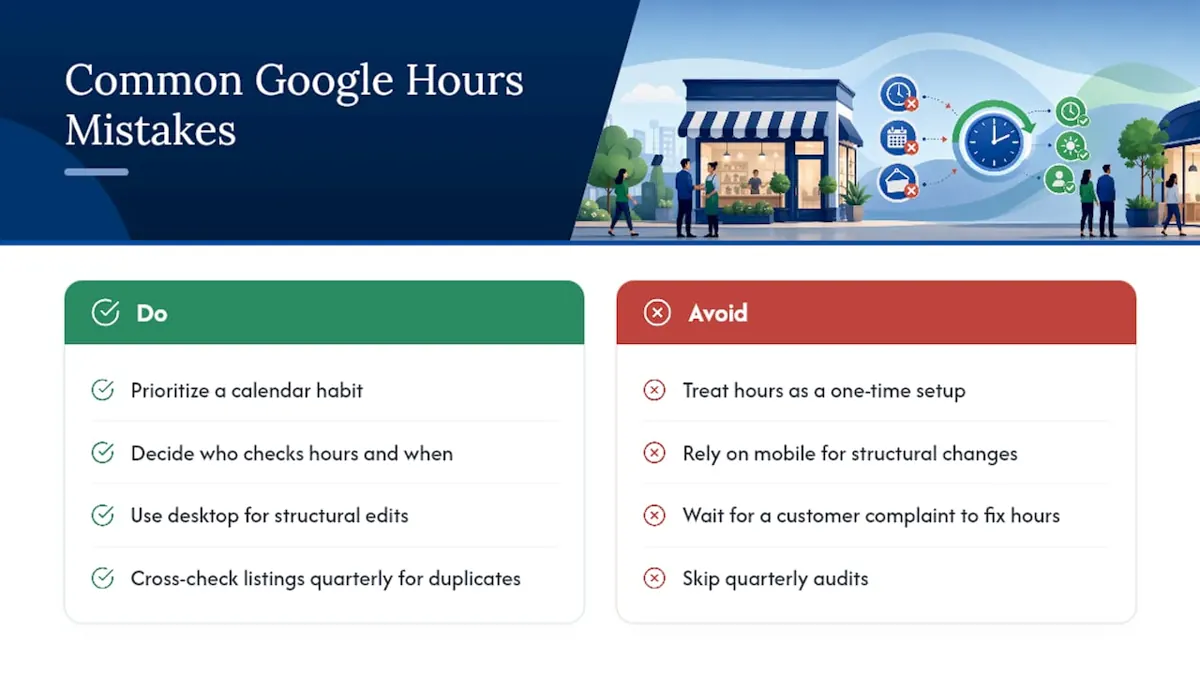
The conventional wisdom also overweights the mobile app for everything. Mobile is genuinely great for the one-off, on-the-go fix, like closing two hours early because your only technician called in sick. It's a poor tool for anything structural, like setting up split shifts across seven days or auditing whether your more hours entries still make sense. That kind of work wants a bigger screen and a slower pace.
If you take one thing from this guide, prioritize the calendar habit over the technical steps. The steps themselves take thirty seconds once you know them. What actually protects your listing is deciding, in advance, who checks it and when, especially around the holidays when foot traffic and search volume both spike at once. Cross-checking your listing against duplicate profiles once a quarter catches more real problems than any single edit ever will.
**
Consider handing off your Google Business Profile hours management
If you're managing hours across one location, the steps above will get you there. If you're juggling five, ten, or fifty, the math changes fast. NSYGHT runs Google Business Profile management as part of local SEO services built for owners who don't have a spare afternoon to chase duplicate listings and holiday schedules across every store.

That means bulk hour updates through spreadsheet uploads, one accountable point of contact for every location's schedule, and holiday planning that gets queued weeks ahead instead of the night before Thanksgiving. If you're a single-location shop making occasional edits, DIY is fine, and the steps in this guide will cover you. If you're managing multiple locations, frequent seasonal changes, or a small staff with no spare hands for admin work, that's where handing it off actually saves money instead of costing it. A partner resource like ctrl + alt + orion also has useful tools for notifying customers once hours change. Consider contacting a local SEO and AI search agency to discuss what a hands-off setup could look like for your locations.